
Follow these steps to configure your home OBS server to broadcast to our IRLhosting Cloud OBS servers
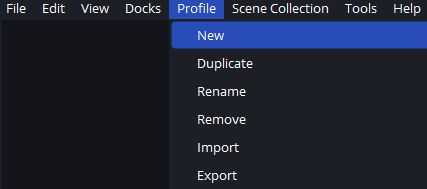
- Select the "Profile" option in OBS choose "New profile
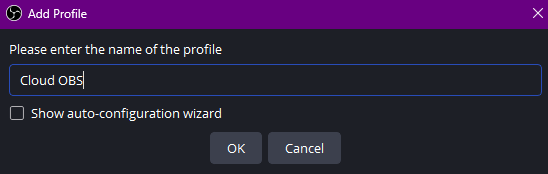
- Name your new profile something easy to recognize
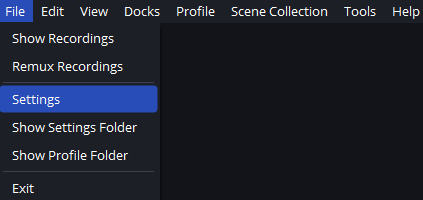
- Select "File" and open Settings
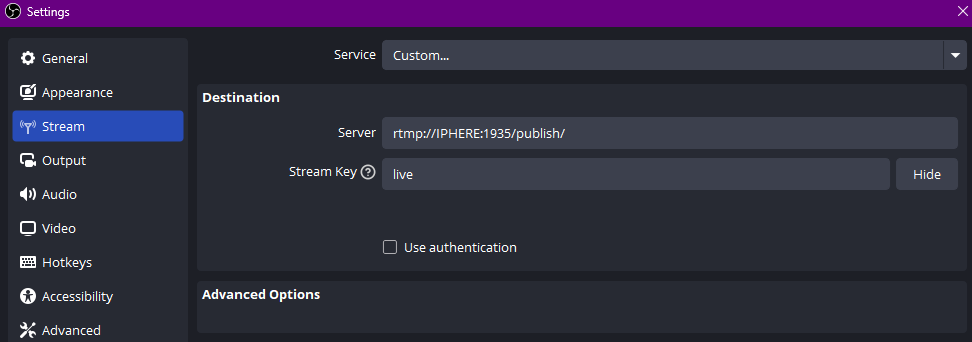
- Select "Stream", set the service to "custom" and enter your RTMP information in the server field. Enter the streamkey in the Stream Key field.
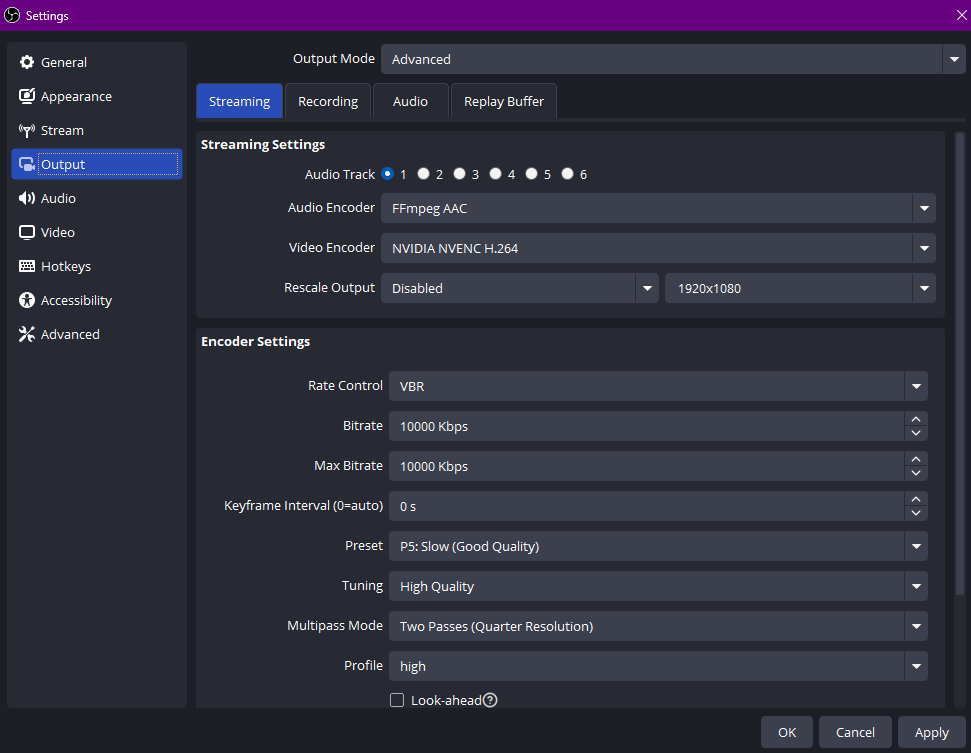
- Open up output and change the mode to "Advanced" Set your video encoder to output H.264, change the rate control to VBR and set your bitrate to between 6,000 and 10,000. Set your Max bitrate to match
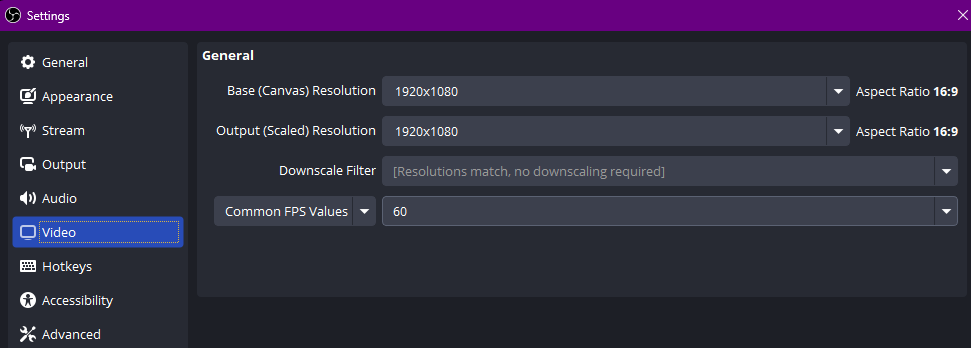
- Open the "Video" tab and change the output resolution to be 1920x1080 and set the common FPS values to 60 and then click Apply, then OK.
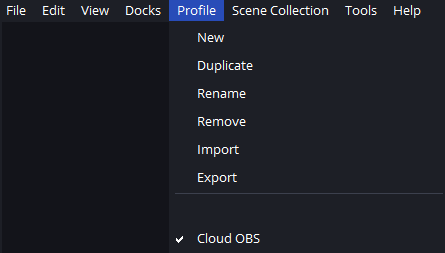
- Click on "Profile" and select your new cloud OBS profile.
- Log in to the Cloud server and set-up the scene and add the media source you would like your home OBS to output to.
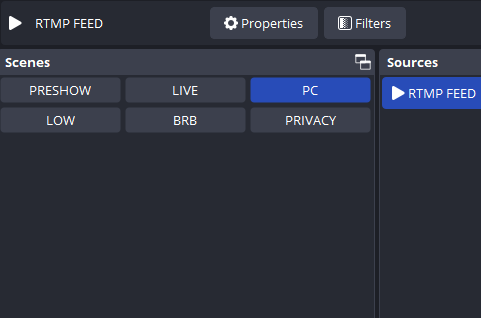
- Edit the media source to include all relevant information
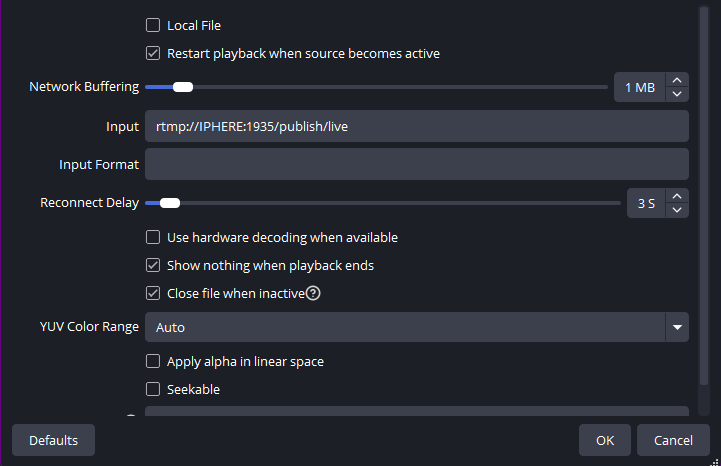
- Click start streaming and you'll be broadcasting to the RTMP endpoint and it will be displayed on the Cloud OBS server's scene that you've selected!
