
Home to Cloud Setup, Home Side
This guide will tell you how to set up your home PC to broadcast to your IRLhosting clouds server using the Home To Cloud Relay (Found here)
Required information can be found within your client area of the IRLhosting website.
Follow these steps to configure your home OBS to broadcast to our IRLhosting Cloud OBS servers. The following steps are to be done on your home computer's OBS;
-
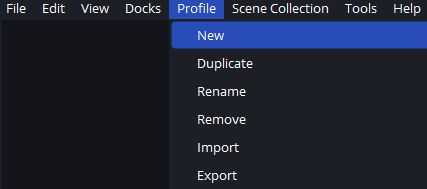
Select the "Profile" option in OBS choose "New profile
-
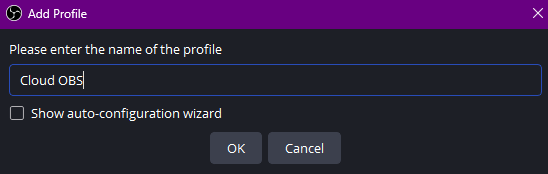
Name your new profile something easy to recognize
-
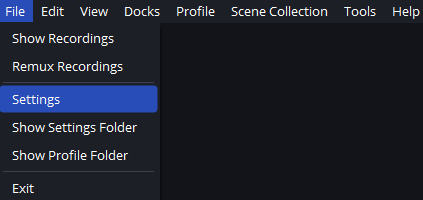
Select "File" and open Settings
-
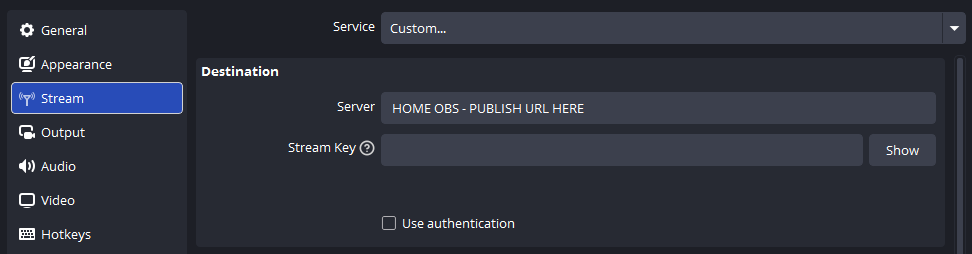
Select "Stream", set the service to "custom" and enter your Home OBS — Publish URL information in the server field. Leave the "Stream Key" field blank.
-
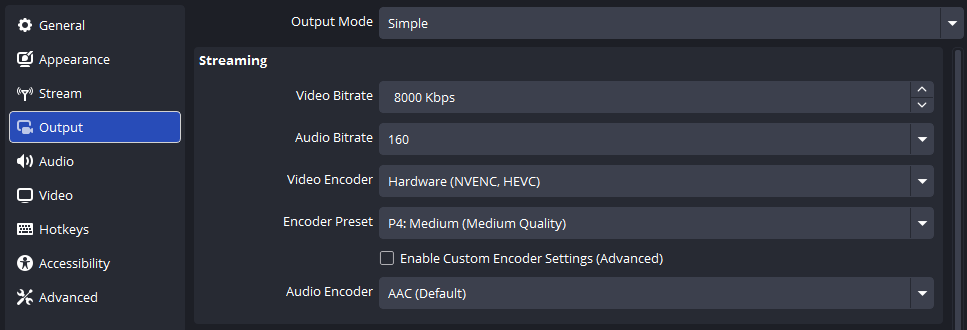
Open up output and change the mode to "Simple" Set your video encoder to output to H.265 (NVENC, HEVC), and set your bitrate to between 4,000 and 8,000.
Cloud Side Setup
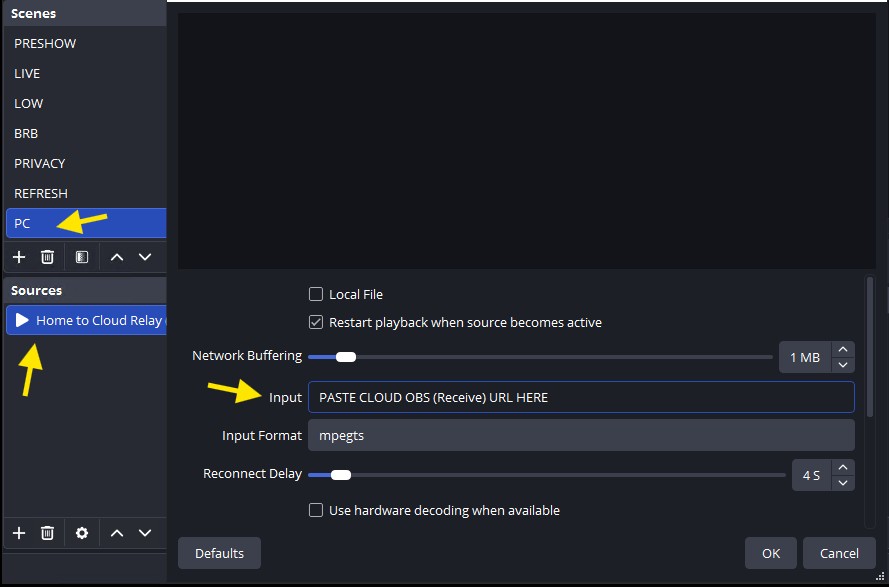
- Log into your Cloud OBS Computer and find the "PC" scene
- From there, open the media source and paste the "Cloud OBS (Receive)" URL (Found in your H2C Order area) into the media source.
Streaming Process
Go live with your home OBS, if all settings match those shown above, it will be displayed on your "PC" scene on cloud OBS.
Your home OBS is now acting like another device broadcasting to the server.
-
Start your home OBS Broadcasting
-
Switch to the PC scene on your cloud OBS
-
Start broadcasting to your streaming platforms with cloud OBS
-
Switch to LIVE Scene with your normal devices to do IRL content then back to PC to do a mixture of desktop and IRL in the same stream
Need help? Contact support and include your Order ID or the email address you've signed up for IRLhosting with.
