How to use IRLremote with your Streamer Hosting order
- Open the client area on the IRLhosting Website
- Navigate to your order and click on "View Details"

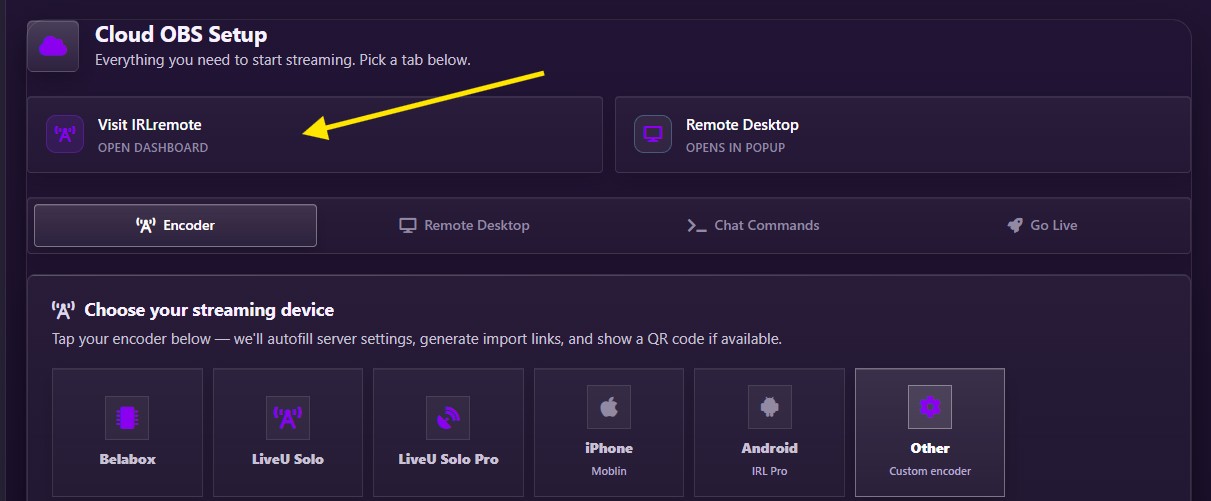
- Scroll down and click the “Visit IRLremote” button to open the IRLremote. It is recommended to bookmark your unique IRLremote URL as it will be useful in the future while you are IRL streaming.
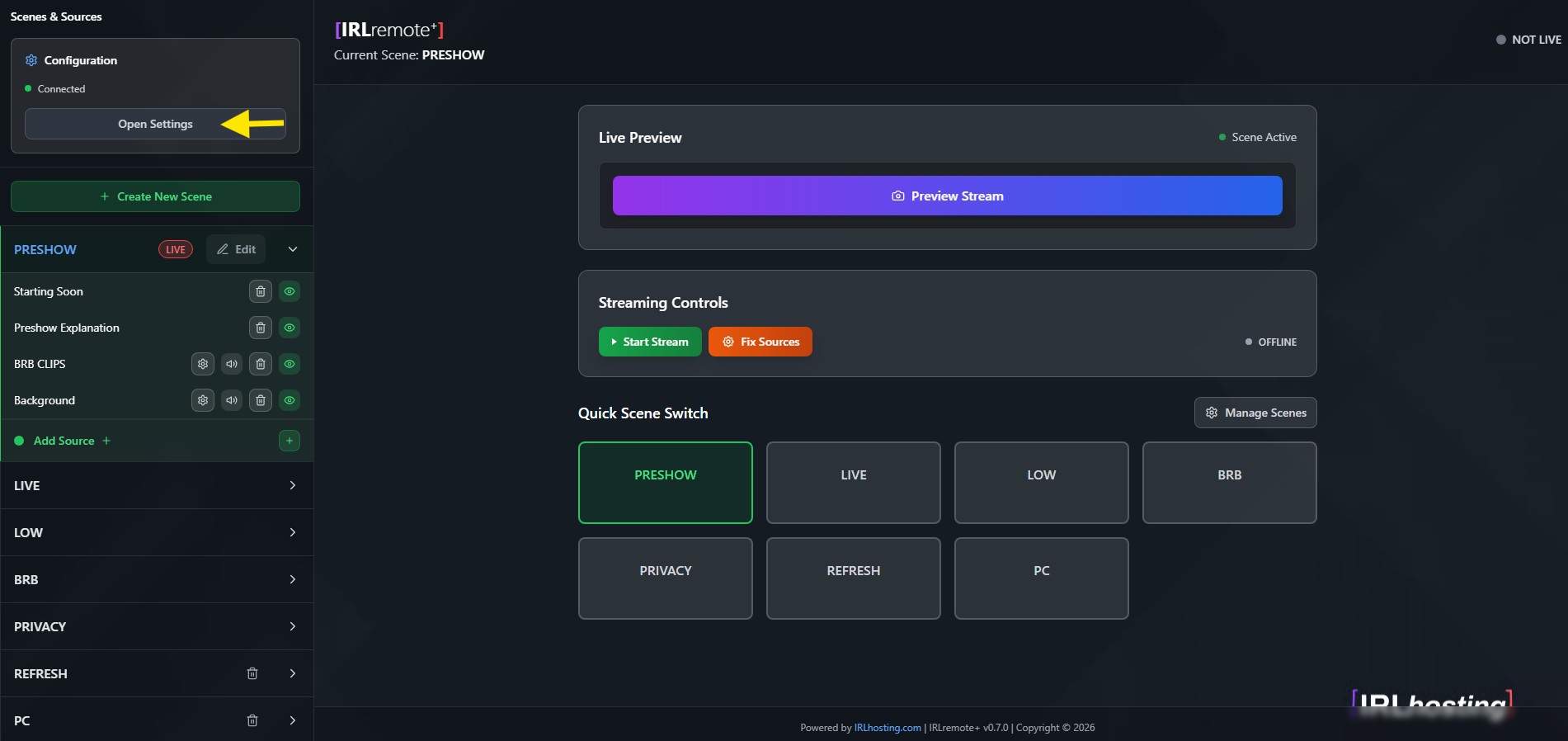
- Press the “Open Settings” button in the top left to configure your cloud OBS server.
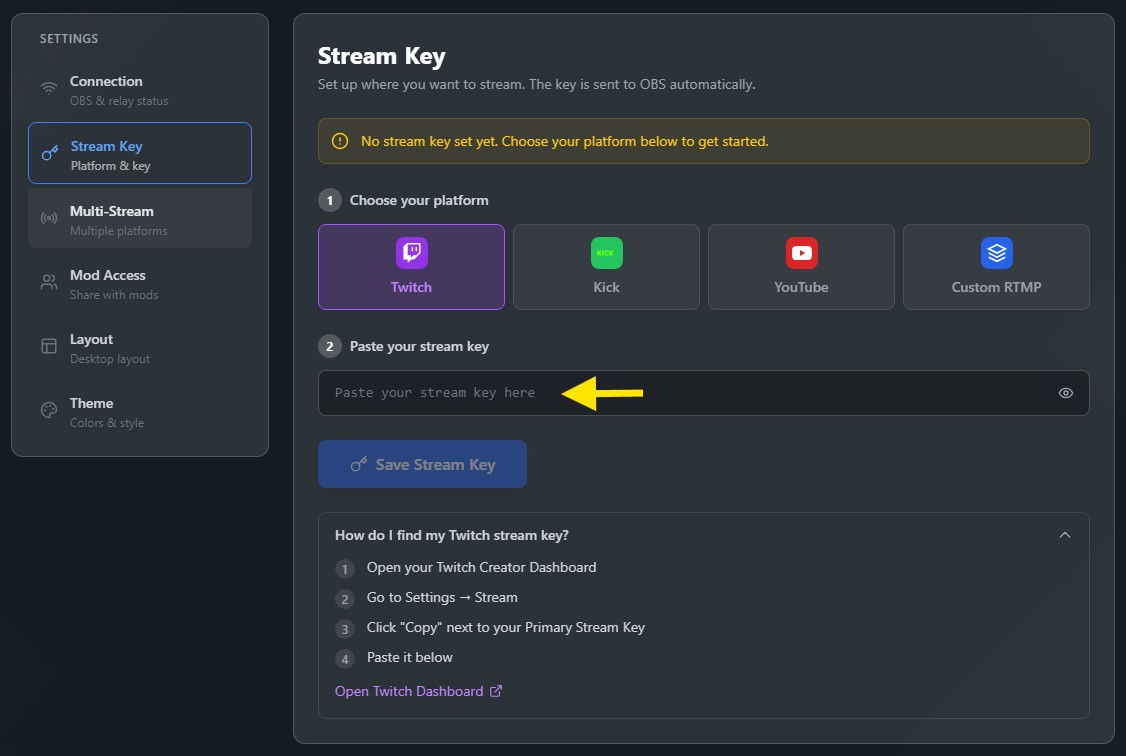
- Click on the Stream Key tab and follow the instructions to enter your streamkey into your cloud OBS server. After your initial configuration please explore the other options found in the configuration area to unlock the full potential of IRLremote.
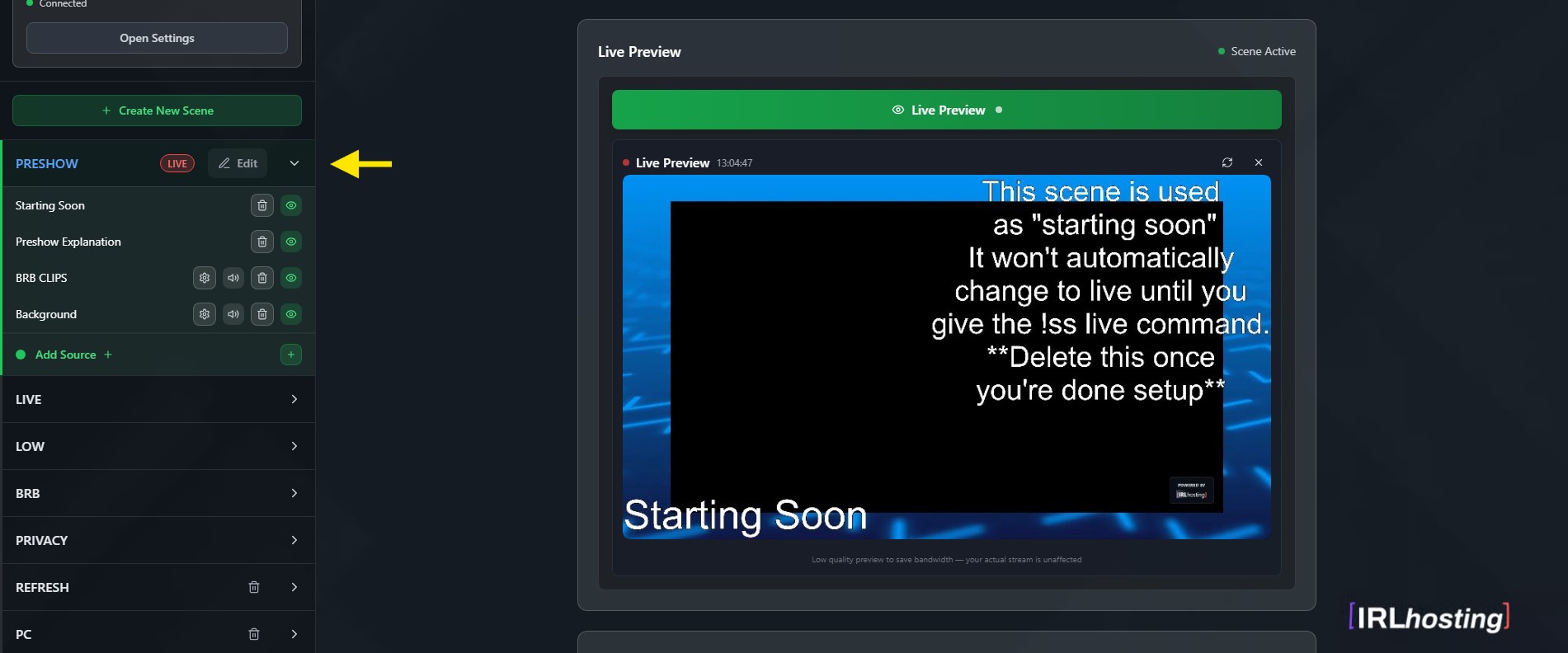
- On the main page of IRLremote, on the left hand side you have controls for your OBS scenes and sources. You can use this to modify the preexisting sources or add your own new scenes. Inside the individual scene menus you can control your sources.
- The eye can be used to hide/display sources.
- The trash can can be used to delete sources.
- The speaker can be used to mute/unmute sources.
- The cog wheel will open an additional menu depending on the type of source.
- Note: the preview will only display a static image once every 3 seconds, your actual stream will be broadcast in full frame rate.
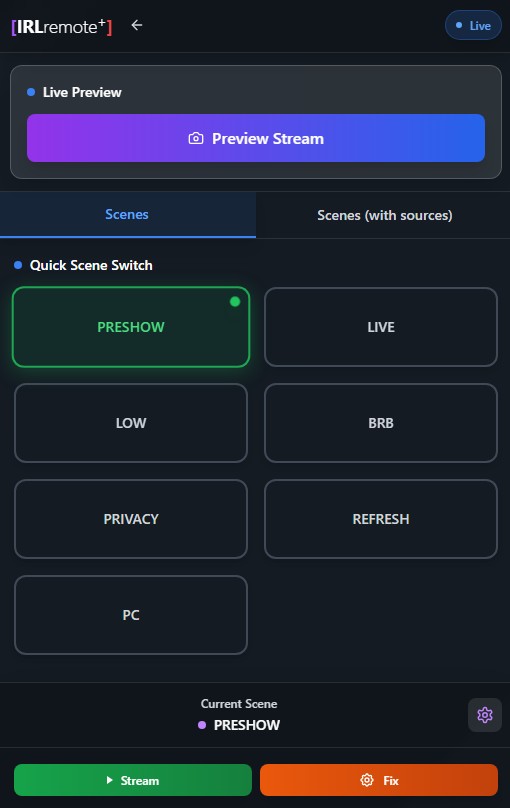
- IRLremote can be opened up on a mobile device to control aspects of your stream while out IRL streaming. You can select the scene names to change scenes and start/stop your cloud OBS server.