
Guide: How to Remote into a Server Using Windows RDP
Step 1: Check Your Internet Connection
Firstly, ensure you have a stable Internet connection as you will need this to access the server remotely.
Step 2: Find the Remote Desktop Connection Application
On your Windows computer, click on the Start menu and type "Remote Desktop Connection" into the search bar.
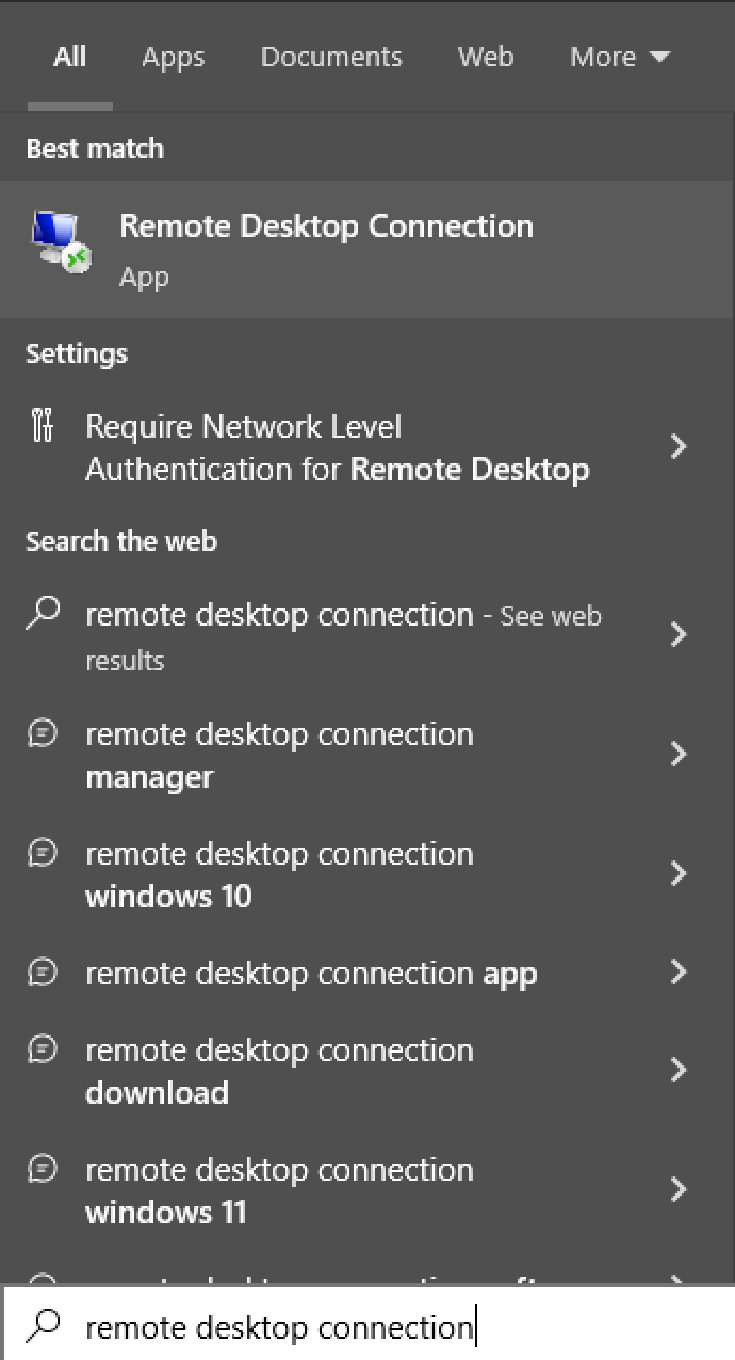
Step 3: Open the Remote Desktop Connection Application
Click on the Remote Desktop Connection application to open it.

Step 4: Enter the Server's Address
In the Remote Desktop Connection window, you will see a field labeled "Computer." Type the IP address and the port you wish to connect to in this field.

Step 5: Enter Your User Credentials
Click the "Show Options" button to expand the options menu. Enter your username in the "User name" field.

Step 6: Connect to the Server
Click the "Connect" button to initiate the connection.

Step 7: Enter Your Password
You will then be prompted to enter your password. Do so and then click "OK".

Step 8: Accept the Certificate (if applicable)
In some cases, you may see a warning about the server's certificate. If you trust the source, click "Yes" to proceed.

Step 9: Welcome to Your Server
If the connection is successful, you should now be viewing the server's desktop environment. Congratulations, you have successfully remoted into your server!

Troubleshooting Tips
If you are having trouble connecting, check to make sure you've entered the server's address and your user credentials correctly. Also, make sure your Internet connection is stable. If you're still having trouble, use the #open-a-ticket function in the IRLtools discord found at;

That's it! You now know how to remote into the server using Windows RDP. Please be sure to log off when you're done using the server.
